
Set up DutyHouse in an afternoon
From signing up to the first family booking: the five steps the overview walks you through.
Examples use Bluegum Valley JFC, a made-up club. About the sample club
Priya, the volunteer coordinator at Bluegum Valley JFC, set the club up on a Sunday afternoon before registrations opened. Here's what she did, in order.
 (full size, opens in a new tab)
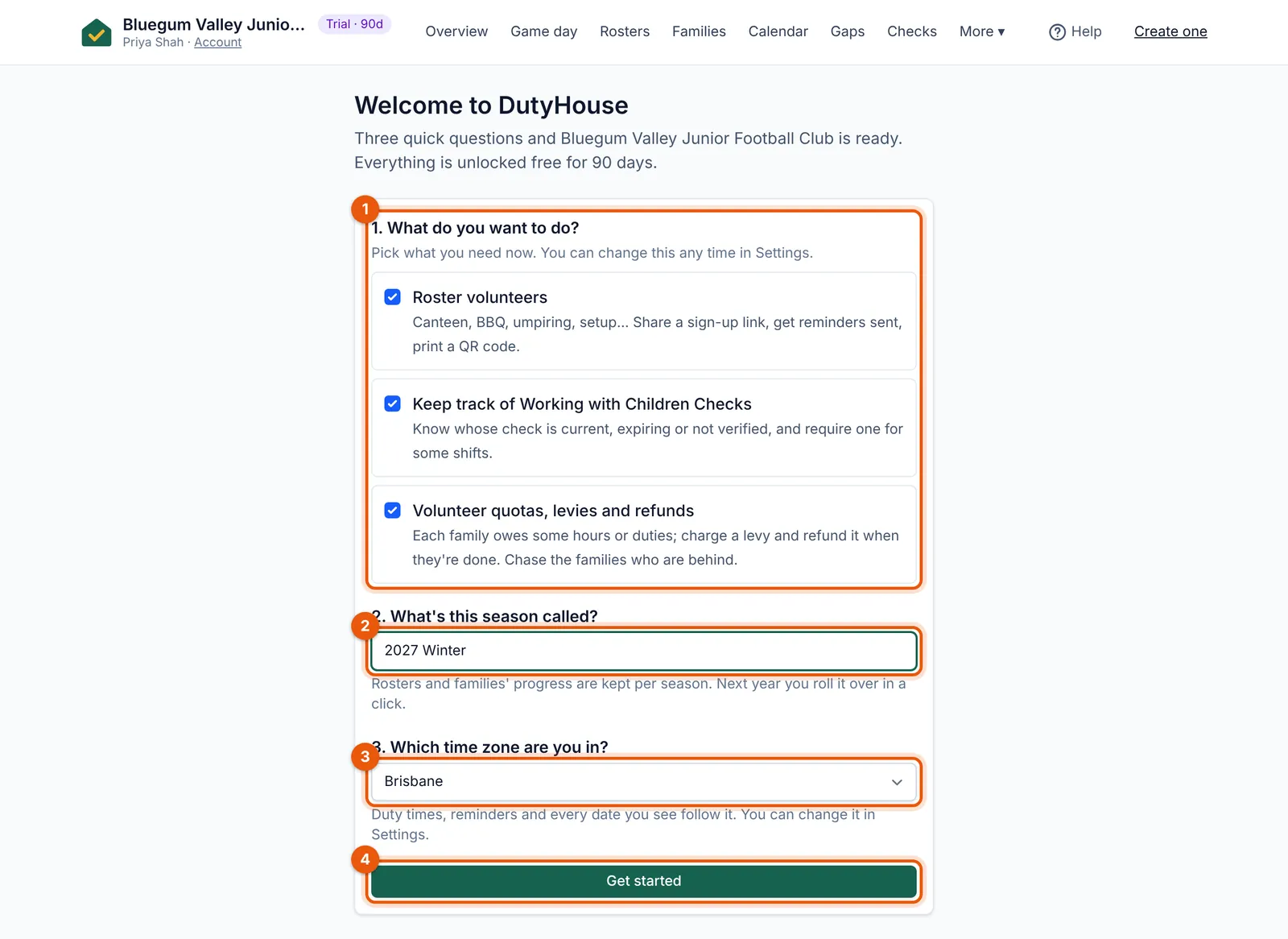
- Tick what you want to do now: rosters, Working with Children Checks, quotas and levies.
- Name the season, such as “2027 Winter”.
- Pick your time zone: reminders and cut-offs use it.
- Get started opens your overview with the “Getting started” list.
- Start a free trial at dutyhouse.com with the club’s name and your email. The email has a button that finishes setting up; it works once, for an hour.
- Answer the three welcome questions: what you want to do (rosters, quotas and levies, Working with Children Checks), what this season is called, and your time zone. You can switch things on later.
- Add your families: import a spreadsheet or a PlayHQ or GameDay export, or start with the sample families to look around first.
- Build the season’s roster from a template, such as “Home game day” for a sports club.
- Share the sign-up link in your newsletter, WhatsApp group or Facebook page, and put the QR code poster up at the canteen.
The overview keeps a “Getting started” list and ticks each step off as you do it. Setting how much each family volunteers, recording checks, publishing a web page and inviting helpers are on the list too, when you want them.
Tip: Families never need an account or an app. Only the people running your organisation sign in, with a link emailed to them each time.