
Import families from PlayHQ, GameDay or a spreadsheet
Bring in your families from a registration export or any spreadsheet, check the result, then import.
Examples use Bluegum Valley JFC, a made-up club. About the sample club
Tom, the registrar at Bluegum Valley JFC, exported last season's registrations from PlayHQ as a spreadsheet. A sheet with columns such as Player, Parent name, Parent email and Mobile works the same way.
 (full size, opens in a new tab)
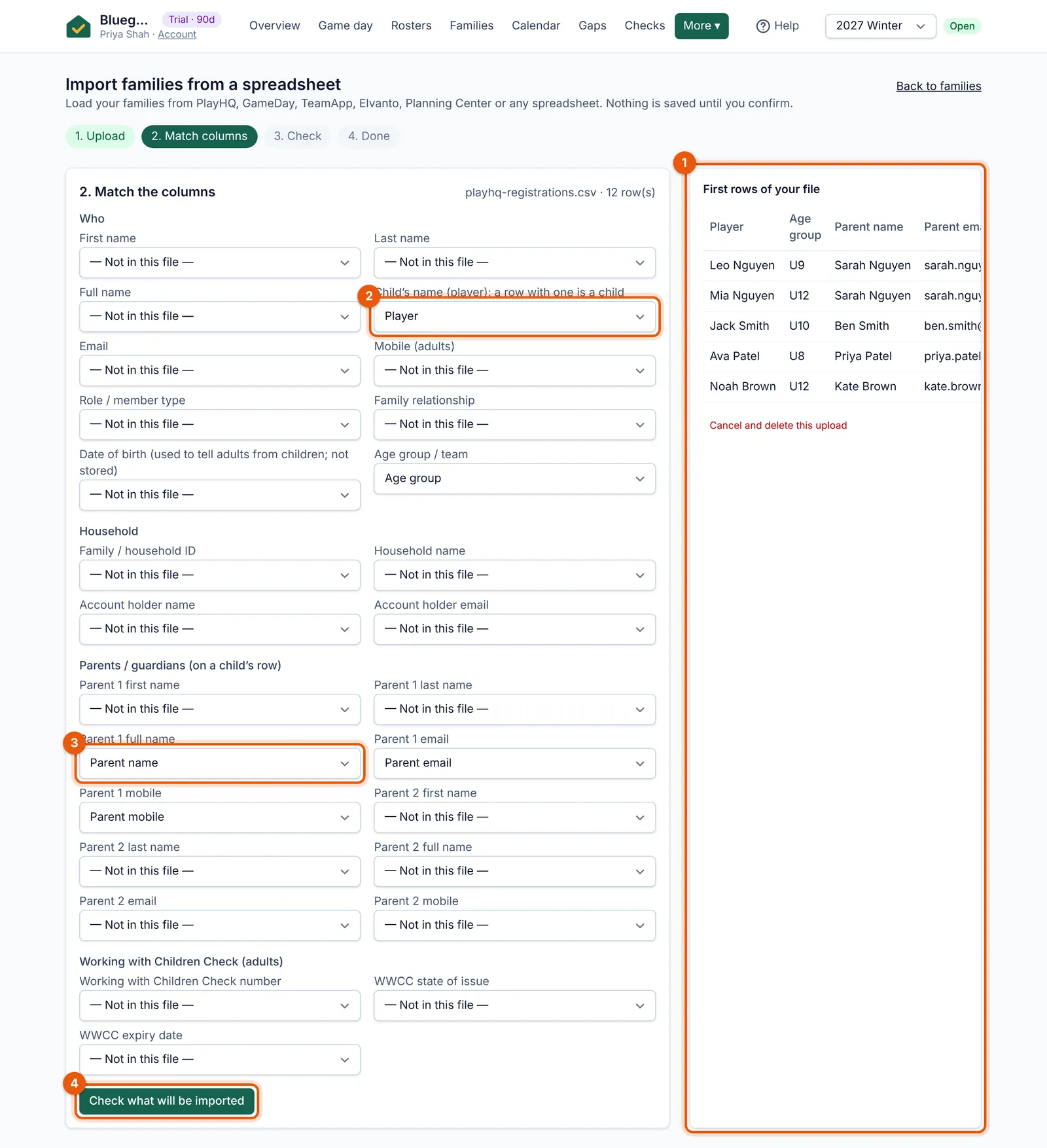
- The first rows of your file, as DutyHouse read them.
- Each column is matched for you: the player is the child’s name…
- …and “Parent name” is the parent’s full name. Change any that are wrong.
- Check what will be imported before anything is saved.
- Go to More → Import families and upload the file (CSV or Excel, up to a few thousand rows).
- Match the columns. DutyHouse recognises exports from PlayHQ, GameDay, Elvanto and Planning Center, and common headings such as “Parent name” and “Player”. Check each column says what it holds.
- Check before importing: you see how many families and people will be added, which rows already match a family (by email, then mobile, then name), and any warnings, such as parents named only by their email.
- Import. Children are kept as a first name and age group only.
Tip: Run the import again later in the season and families already there are matched, not added twice. If two families do end up the same (the Nguyens entered twice, say), Families shows a “likely duplicate” hint and can merge them.
Uploads are kept for at most a day while you check them, then deleted.