
Build your season’s roster
Pick a template, paste or pattern your dates, and get every shift for the season in a few minutes.
Examples use Bluegum Valley JFC, a made-up club. About the sample club
Bluegum Valley JFC has home games every Saturday from 17 April to 21 August. Priya built the whole season's canteen, BBQ and gate roster in one go.
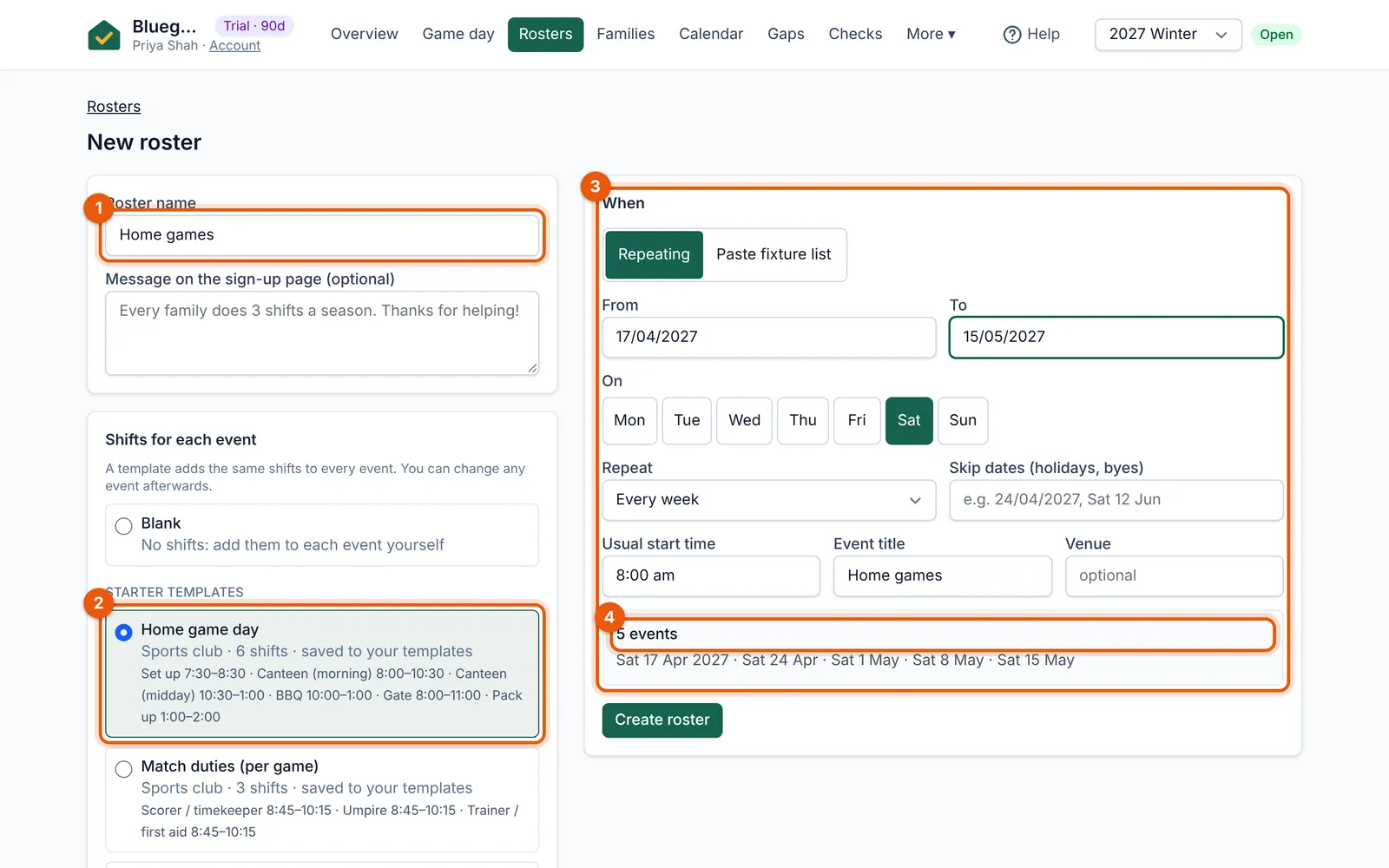 (full size, opens in a new tab)
- Name the roster.
- Choose the shifts: “Home game day” gives set up, canteen, BBQ, gate and pack up.
- Set the dates: a weekly pattern, or paste the fixture list.
- The preview counts the events you’ll get before you create the roster.
- Go to Rosters → New roster and give it a name, such as “Home games”.
- Choose the shifts for each event. “Home game day” gives Set up, Canteen (morning), Canteen (midday), BBQ, Gate and Pack up, each with times and how many people it needs; change any of them.
- Add the dates: a weekly pattern from a start to an end date, or paste the fixture list. Australian date formats work (24/04/2027, Sat 24 Apr). Byes and holidays you list are skipped, and the preview shows exactly which dates you’ll get.
- Add a message for the sign-up page if you like, then create the roster.
Tip: Shifts can need a Working with Children Check, carry more credit (a longer shift counts for more), or be for a team (for example, the Under 12s run the BBQ). Edit a shift on the roster to set it.
Cut-off times, waiting lists, swaps, reminders and how names are shown apply to all rosters: see Settings → Rosters.